HR admin configure a school
Introduction:
The purpose of this document is to promulgate the importance of new attendance system. Amrita E-Track is an
indigenous application designed to help the organization to run a digital attendance system.
Here we will
look how HR Admin of a School will configure the E-Track for a School / Centre.
Getting Started:
To access Amrita Attendance Management System
-
Open an internet browser (Recommended to use Google Chrome)
-
Type https://my.amrita.edu/ and click enter
-
Login with your amrita email id and password.
-
Click AMRITA E-TRACK
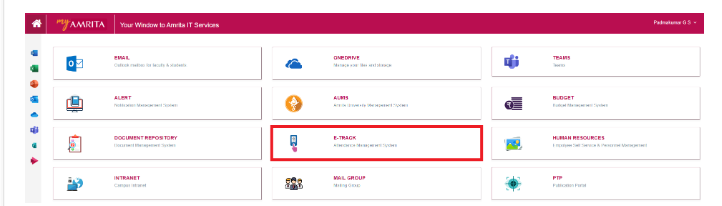
HR Admin Configures E-Track with three simple steps
-
Add new Timeslot
-
Add new Employee Category
-
Add staff to a Department
Add new Time Slot:
-
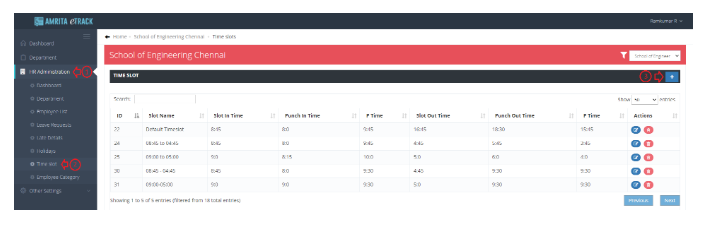
Go to HR Administration in the left side menu.
-
Go to Time slot.
-
Click (+) button at the right side of the page to create new time slot.
-
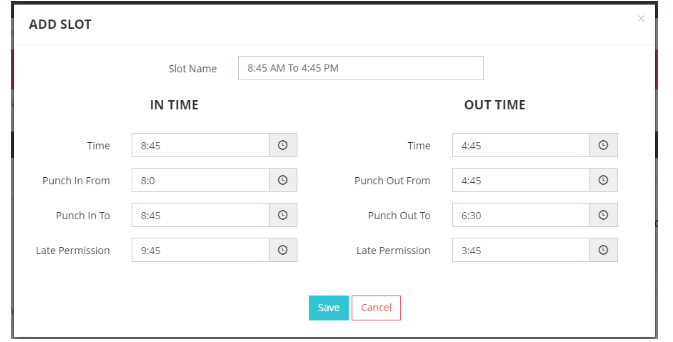
Enter Slot Name.
-
Set the IN TIME & OUT TIME.
-
Click Save.
Add new Employee Category:
-
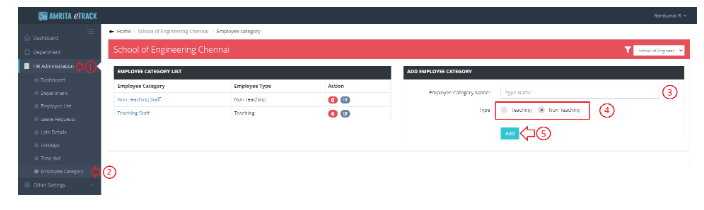
Go to HR Administration in the left side menu.
-
Go to Employee Category.
-
Enter Employee Category name in the text box.
-
Choose any one Type – Teaching or Non-Teaching
-
Click Add button.
-
The employee category you created will be displayed under the Employee Category table at the left side of the page.
Map Leaves and Time slot to the employee category
-
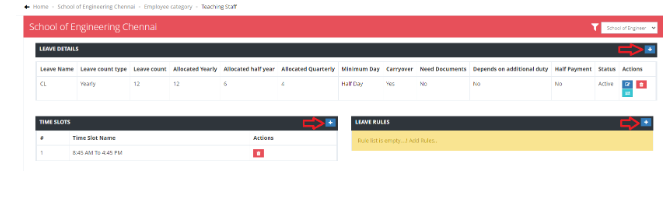
Once you created a new employee category, leave details for the newly created category needs to be defined.
-
Click on the newly created employee category.
-
Click on (+) button in Leave details table, Time slots and Leave rules to define the Leave details, Time slots and Leave rules respectively for this employee category.
Add Staff:
-
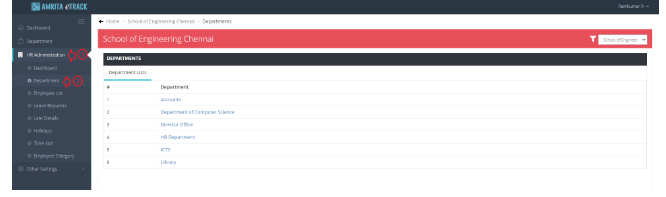
Go to HR Administration in the left side menu.
-
Go to Department.
-
Click on the department name from the Department list.
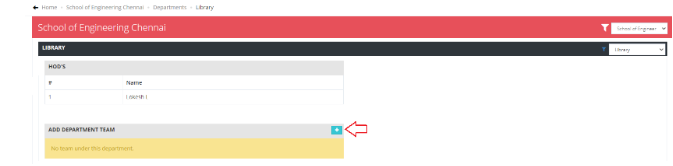
a) Add department team (This is required only for those departments which follow team based working model):
-
To add a department team, click on (+) button.
b) Add new staff to department
-
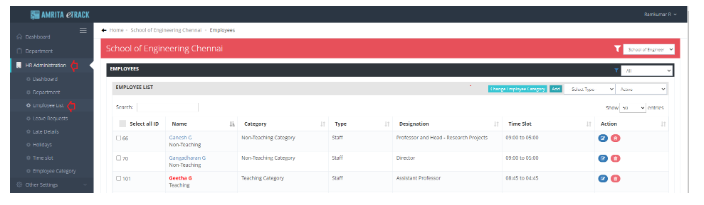
Go to Employee List in the Left side menu under HR Administration.
-
Click Add button. Add Staff window will open.

-
Click check box to select the staff.
-
Select Category, Time slot, and Team from drop-down (Team can be skipped for Teaching faculty).
-
Click Move button.

c) Assign Time Slot for a transferred staff
-
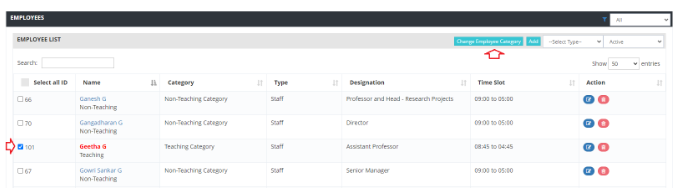
By default the new staff who got transfered from a school to new school will be in Red color. This staff needs to be assigned with the time slot of this new school.
-
Mark the Staff in Red color
-
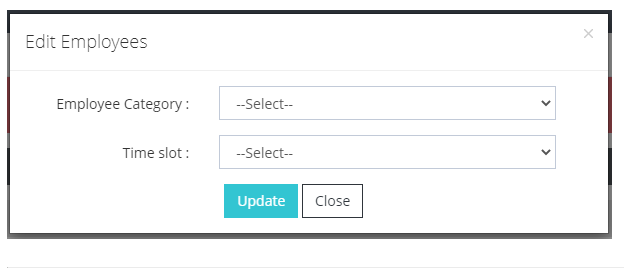
Click Change Employee category button
-
Assign the category and Time slot.
-
Click Update button to save.